








Skype for Business
Overview
Skype for business is a communications service that connects people for meetings and conversations anytime and from virtually anywhere. It gives users access to information about presence, and enables instant messaging, audio and video calling, rich online meetings, and extensive web conferencing capabilities.
Features
The following core capabilities are included in Skype for Business:
- Chat: Enjoy public and private conversations with other Skype users. Includes popular social features, such as adding emojies and custom memes to your discussions.
- Audio & Video Calling: Skype provides a simple and easy-to-use app that allows you to chat with your team via text, have a voice conversation, or a video meeting. Attendees can share their screen and text chat within the meeting.
- Schedule meetings: Easily schedule meetings for your team.
- Record a meeting: Easily record your meetings in Skype and capture audio, video, instant messaging (IM), screen sharing, PowerPoint slides, whiteboard activity, and polling. Steps for recording your meeting can be found at Record and Play back a Skype for Business Meeting
- Files: Skype allows you to send files to other Skype users.
- Desktop Sharing: Skype allows you to present your desktop or a specific application to another Skype user or group of users. The receiving parties can request control which allows them to interact with the presentation.
How do I access Skype for Business?
The best way to get familiar with Skype for Business is to install the Skype for Business app, login with your UA email address and start exploring!
You will need to make sure you have the Skype for Business version installed on your machine please use the following sections to help you identify if it is installed.
Windows
Mac
If the application was not found to be installed using the above steps please open up the applicable section below for install instructions.
Desktops and Laptops
- Desktops and Laptops
-
Sign in to Office 365 at https://portal.office.com/account. Use your ua email address and password to login.
-
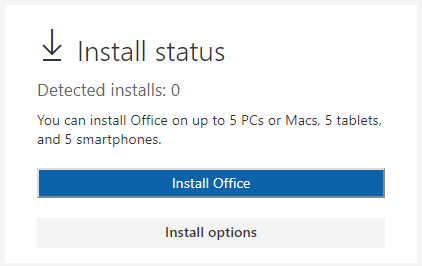
Choose in the install status box in the middle pane and click Install options should look like the image below.
-
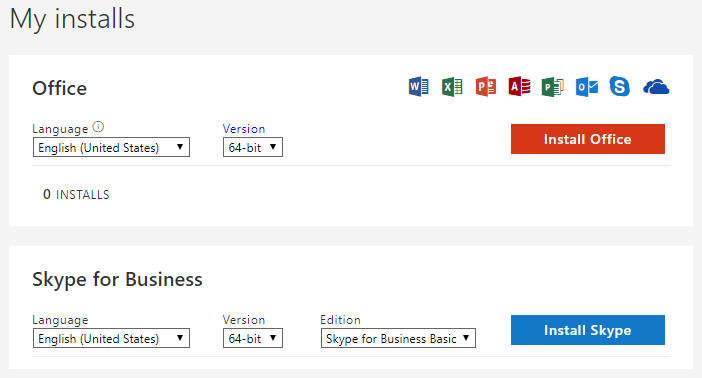
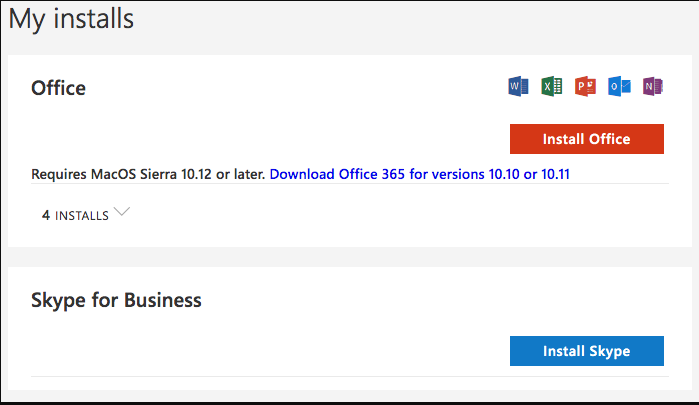
If you see the following page, choose Skype for Business on the left hand side then follow the steps below for Mac or Windows
Windows
Under the Install Skype for Business 2015 section choose your language, the edition that matches your other Office applications (32 bit or 64 bit - if you don't know, choose the default) and choose Install. Then go to step 5.
Mac
Choose Install. Then go to step 5.
If you don't see the install page please contact the UAA IT Services Technical Support Center via phone at (907) 786-4646, toll-free at (877) 633-3888, or email at uaa.techsupport@alaska.edu.
-
Windows
At the bottom of your screen, choose Save as to download the setup file to your computer or you can choose runas. If you selected runas skip to step 7.
After the setup file has downloaded, choose Run.
Important: Note where you saved the setup file on your computer. If Skype for Business stops during setup, this is where you go to re-run it.
Mac
Click install and it should download a package (e.g. skypeforbusinessinstaller-16.24.0.191.pkg) Once the download completes go to download and click to start the installer.
-
Once the Installer starts just accept the defaults and complete the installation
-
Launch Skype for Business. At the First things first box, if you accept the licensing agreement, choose Accept.
You can install Skype for Business on up to 5 Computers. To install Skype for Business on another computer:
-
Log on to your next computer.
-
Sign in to Office 365 at https://portal.office.com/. Using your ua email address and password.
-
Repeat the steps listed in the above procedure to download and install Skype for Business.
Congratulations! You're done installing Skype for Business. Now you're ready to sign in to Skype for Business for the first time.
-
Mobile Devices
Equipment
Note: In many cases participants can join existing meetings via the Skype Web App. Simply click on the Skype meeting address sent to you by the meeting originator and you're good to go.
Start using Skype for Business
- Start Skype for Business.
- In Windows, click Start > Skype for Business 2016.
- On Mac, go to the Applications folder and double-click Skype for Business.
- On mobile, tap the Business icon.
- Sign in with your UA email address (UaUsername@alaska.edu) and password.
Creating Skype for Business Meetings
You can create an ad-hoc Skype for Business meeting at any time by simply adding contacts to an existing conversation, however there may be times that you want to schedule a Skype for Business meeting in advance. For Staff and Faculty, Skype for Business meetings will also include a conference bridge number so that participants can dial into a meeting if a computer is not accessible. Student Skype for Business meetings must be joined via a computer.
Online Meeting Scheduler Info
On-Premise Meeting Scheduler Info
HELP RESOURCES
Use the help resources listed below to learn how to successfully use Microsoft Teams.
- Skype for Business Quick Start Video (2 min 14 sec)
- Skype for Business video training - a collection of short, usually less than 3 minutes each, video tutorials covering a wide range of Skype for Business topics.
- Skype for Business support
- Skype for Business tips & tricks
- Record a meeting in Skype
Frequently Asked Questions
- What options for accessibility does Microsoft Skype support?
Microsoft Skype supports various screen reader solutions to allow individuals to explore and navigate. Further details and information is available in the Microsoft Skype Accessibility Support pages covering Windows, Mac, iOS, Android, and Web platforms.
- Are there any keyboard shortcuts?
Yes! Microsoft Skype offers many different keyboard shortcuts. To see a list of keyboard shortcuts you can go to the following url Skype keyboard shortcuts
- How many people can participate in a meeting?
The maximum number of participants in a video conference, or call, is 250 people.
- What is the difference between Skype for Business Basic and Skype for Business 2015
Basic client limitations
The features below are available using the Full client and are not available with the Basic client:
Manage team call settings
Manage delegates
Handle another's calls if configured as a delegate
Manage a high volume of calls
Initiate a call to a Response Group
Call park
Change greeting
Group call pickup
Whiteboarding
Missed call notification emails are not generated when a user status is UM disabled and they are using a legacy Outlook Client (2013 or earlier) - Features not available in Skype Online
Online or Hybrid user account limitations
User accounts can exist either Online or On-premises, and that will affect the features available to that user. Users with accounts on Skype for Business Online will not have access to the following features, even with the Full client:
- Enhanced Presence: Use a photo from any public site for My Picture
- Contacts: Search for Response Groups
- IM Support: Persistent Chat (Group Chat) integration
- IM Support: Escalate a Persistent Chat room to a Skype for Business Meeting with one click
- External Users: Conduct two-party or multiparty calls with external users
Known Issues
Other related information
- Skype for Business SIP Migration
- Google Hangouts Chat
- Microsoft Teams
- Google Meet
- Office Online
- Comparing Collaboration Tools
Need additional help or have issues
For additional assistance contact UAA IT Services Technical Support Center via phone at (907) 786-4646, toll-free at (877) 633-3888, or email at uaa.techsupport@alaska.edu.